
Appearance
How to Fix Duplicate H1 Issues in the SEO Checklist
How to Fix Duplicate H1 Issues in the SEO Checklist
If your Product Page SEO Checklist shows either of the following warnings:
- Extra H1 tags were found in the description.
- Multiple H1 headings are generated by the theme structure.
There's usually no need to worry. In most cases, these warnings are caused by your Shopify theme or the content inside your product description.
Follow the steps below to identify and fix the issue.
1. Extra H1 tags were found in the description
Why does this happen?
Most Shopify themes automatically render the product title as the page's only H1 heading.
If you've also added one or more H1 tags inside the product description, the page will end up with multiple H1 headings.
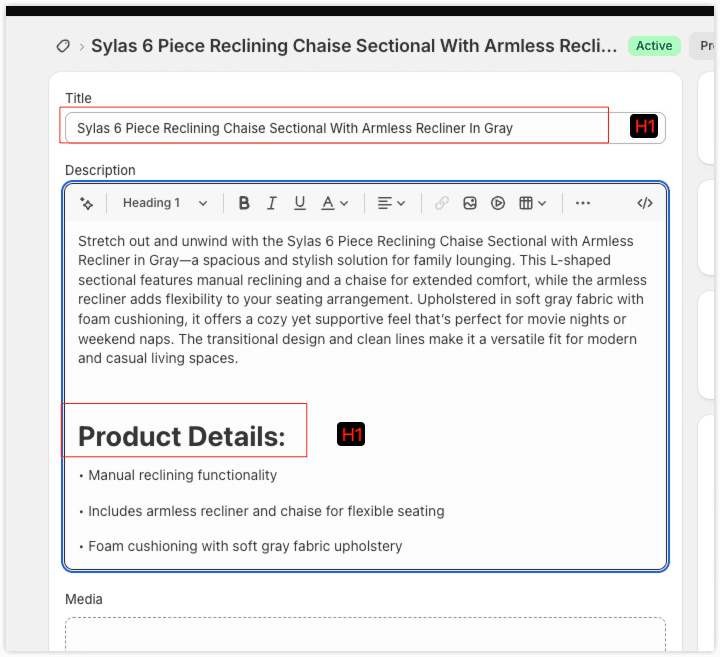
In some themes, the product title may not be rendered as an H1. If that's the case and your product description contains multiple H1 headings, SEOWILL will still detect the issue.
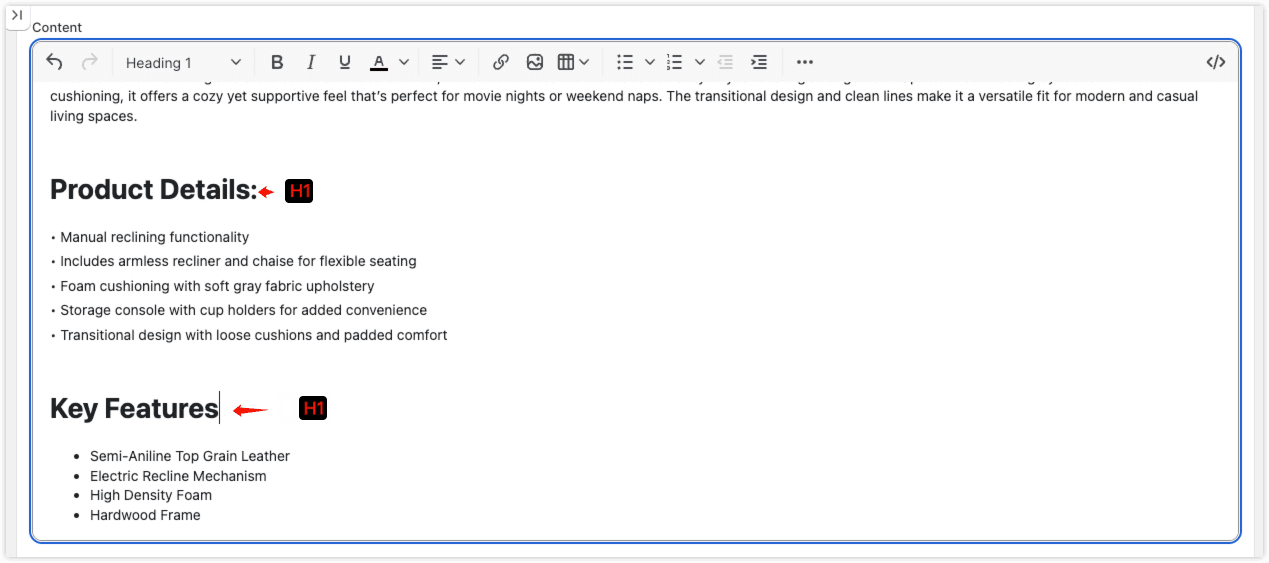
You'll see the following warning:
Extra H1 tags were found in the description.
How to fix it
Option 1: Edit the heading directly
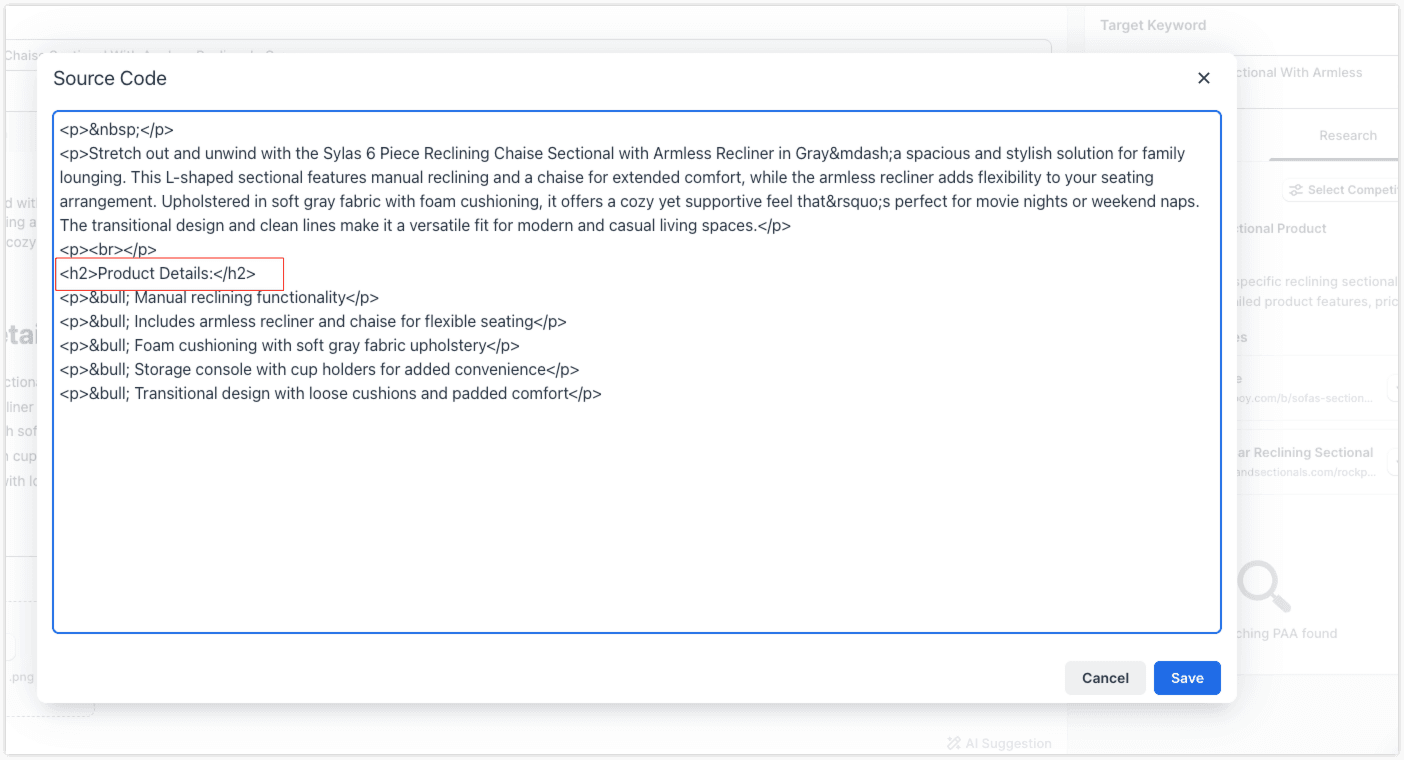
If you know which headings in your product description are H1 tags, simply change them to H2, H3, or regular paragraph text.
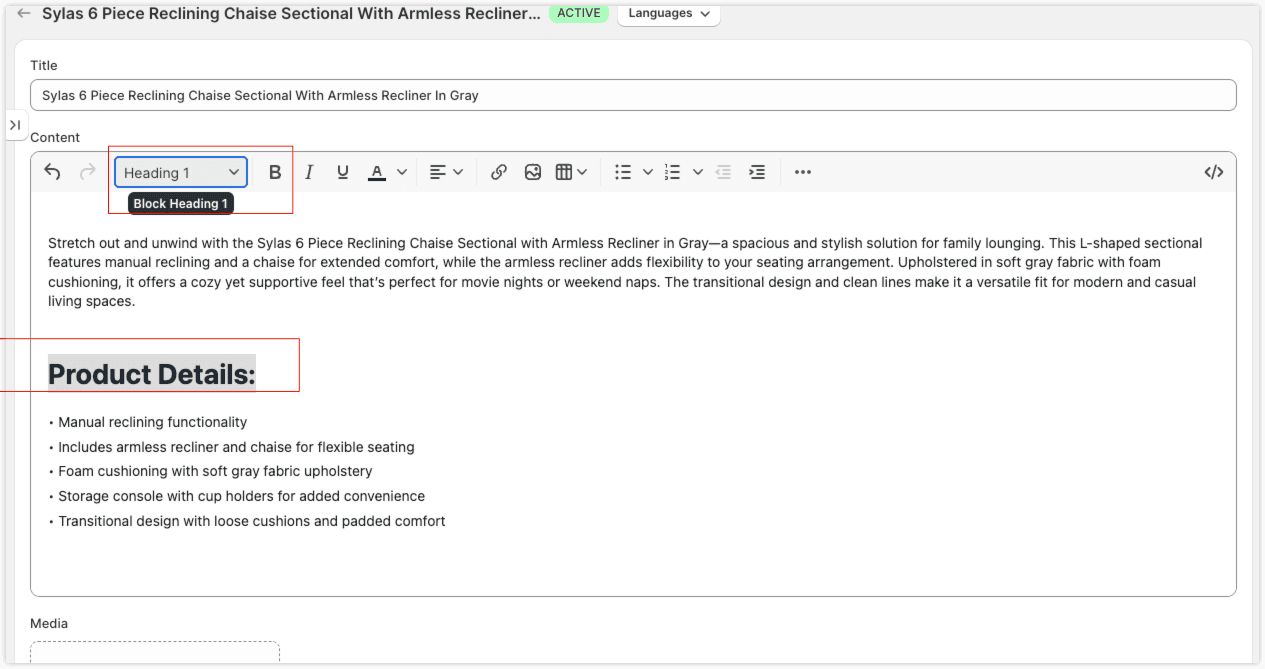
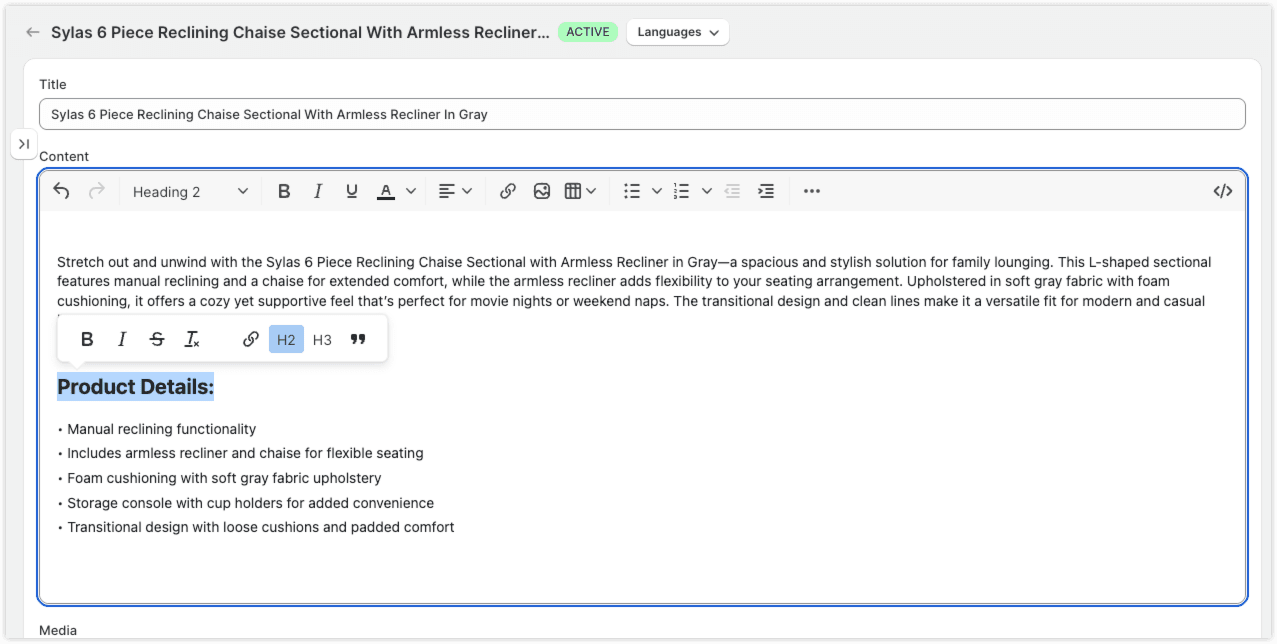
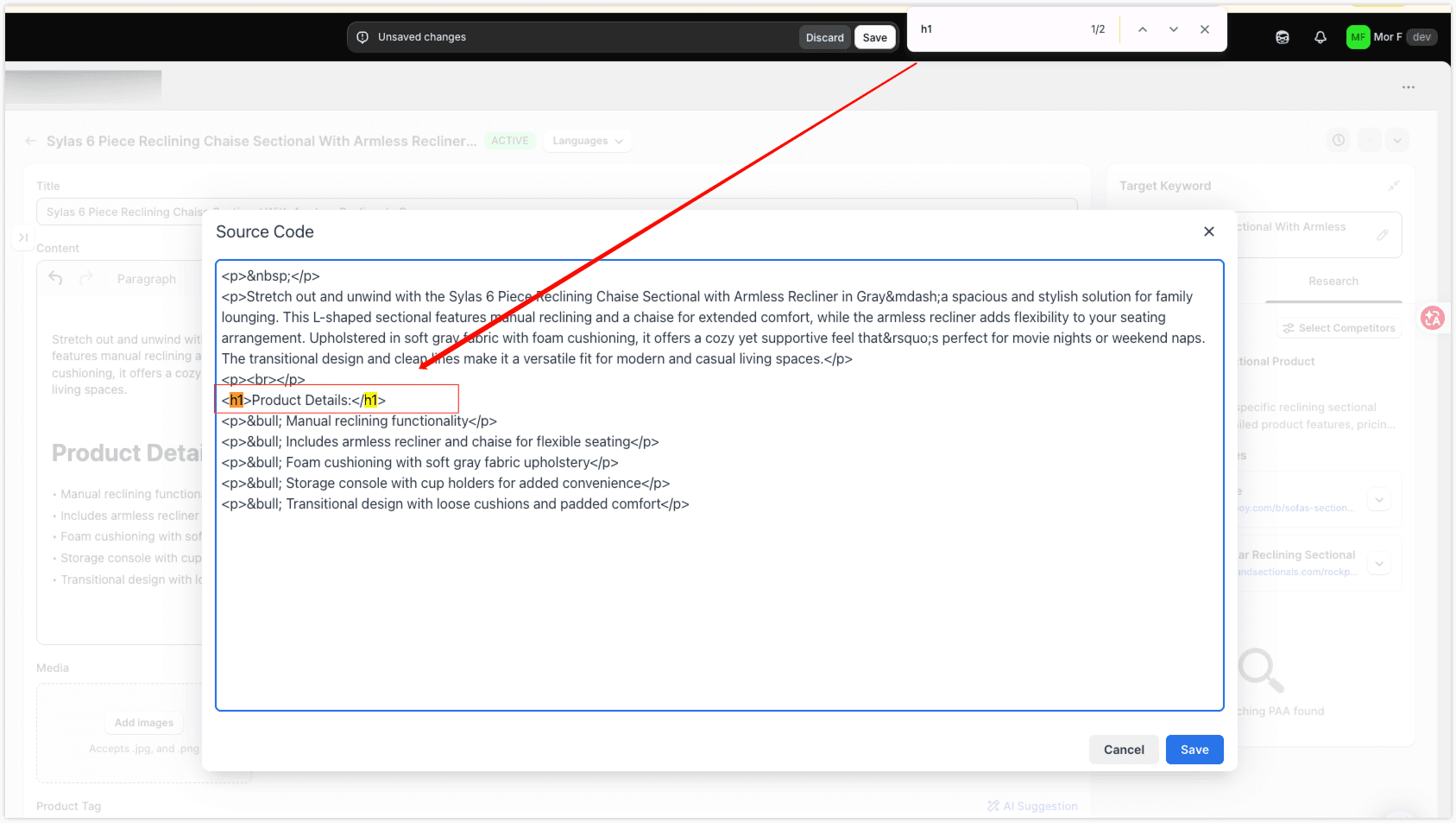
Option 2: Find H1 tags in the source code
If you're not sure where the H1 tags are, you can locate them using SEOWILL.
- Open the Source Code editor in SEOWILL.
- Press
Ctrl + F(Windows) orCommand + F(Mac). - Search for
<h1>. - Replace any unnecessary
<h1>tags with<h2>,<h3>, or regular text.
2. Multiple H1 headings are generated by the theme structure
Why does this happen (theme structure)?
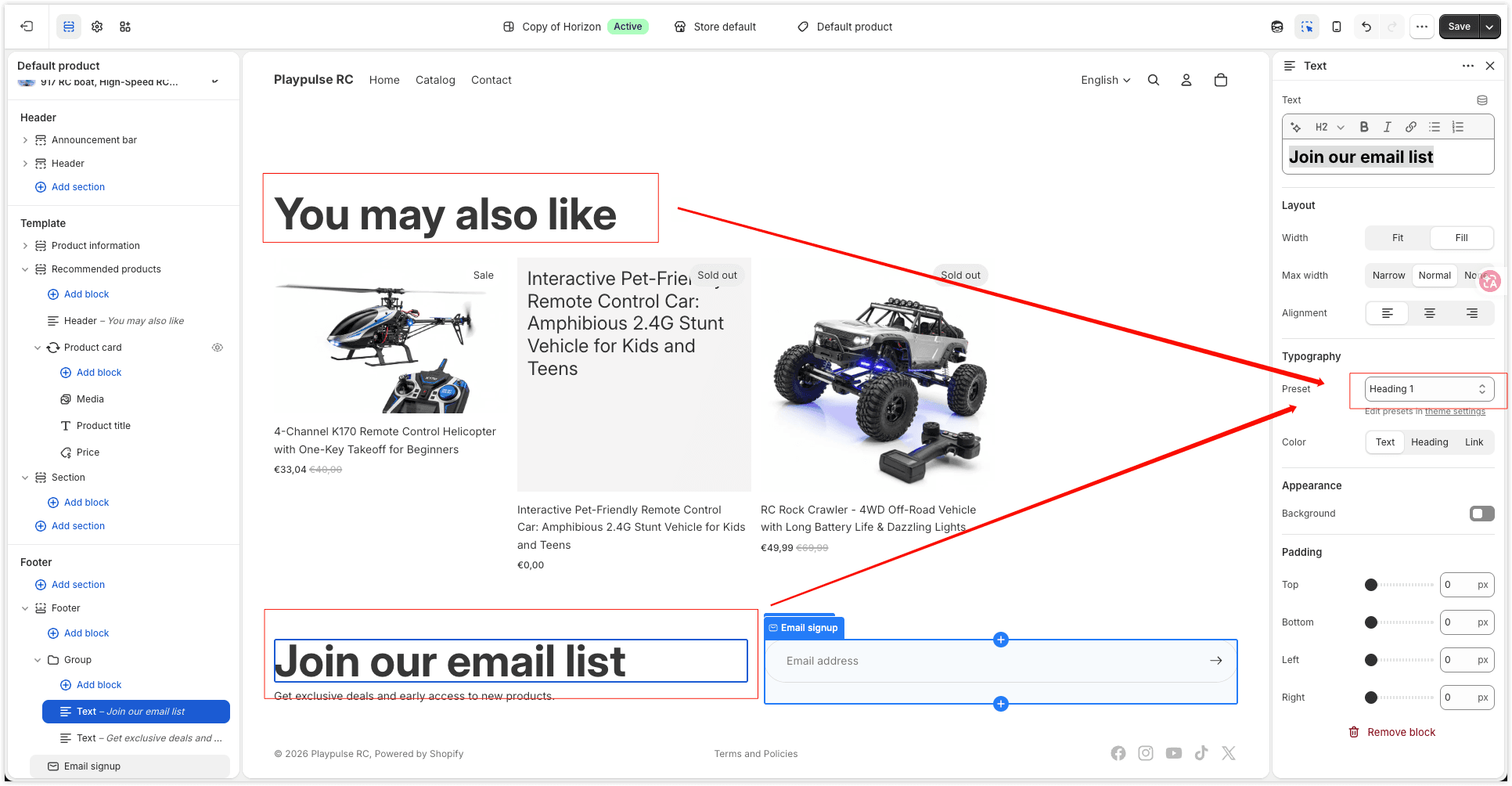
Some Shopify themes generate multiple H1 headings automatically. For example:
- The product title is an H1.
- A custom section heading is also rendered as an H1.
In this case, even if your product description contains no H1 tags, the page can still have multiple H1 headings.
SEOWILL will display the following warning:
Multiple H1 headings are generated by the theme structure.
This issue is caused by your theme's code rather than your product content.
How to confirm the issue
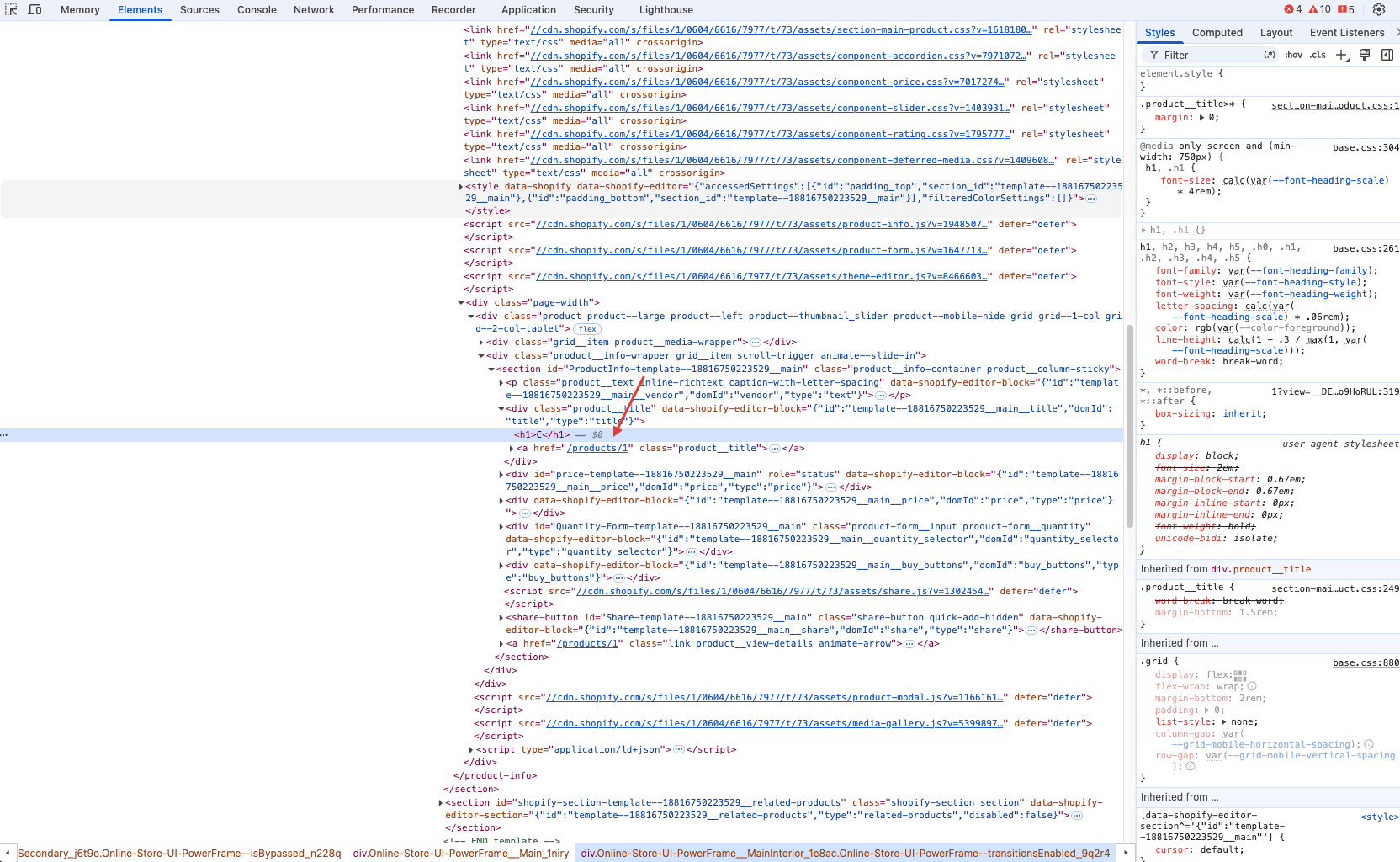
Open your page in your browser.
Then:
- Right-click anywhere on the page and select Inspect.
- Search for
<h1>in the page source.
If you find multiple H1 tags and they are not inside your product description, they're most likely being generated by your theme.
How to fix
Depending on your theme, you can use one of the following methods.
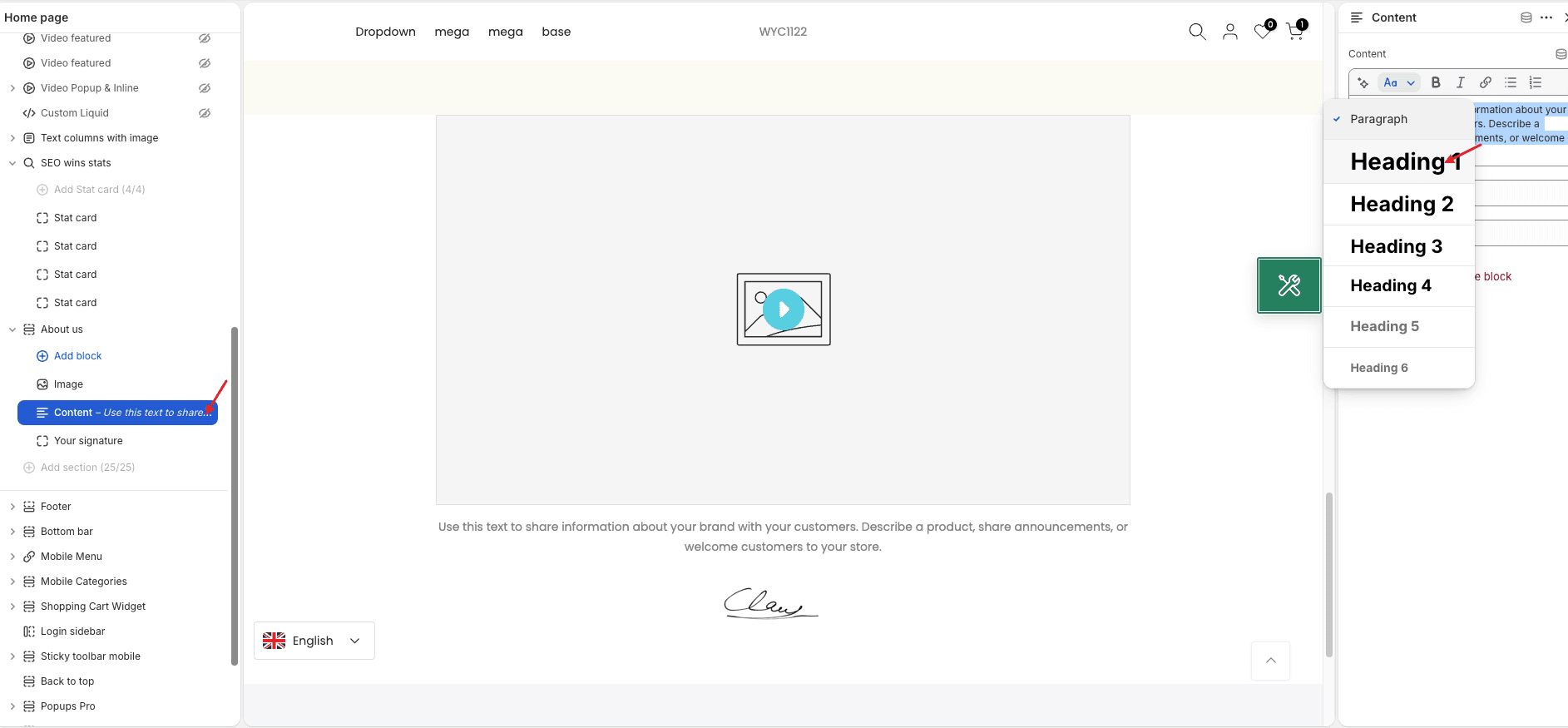
Method 1: Change the heading level in the Theme Editor (Recommended)
Go to:
Online Store → Themes → Customize
Check sections such as:
- Banner
- Rich Text
- Image with Text
- Other custom sections
Some Shopify themes allow you to change the heading level. If available, change the heading from H1 to H2 or H3.
Method 2: Edit the theme code
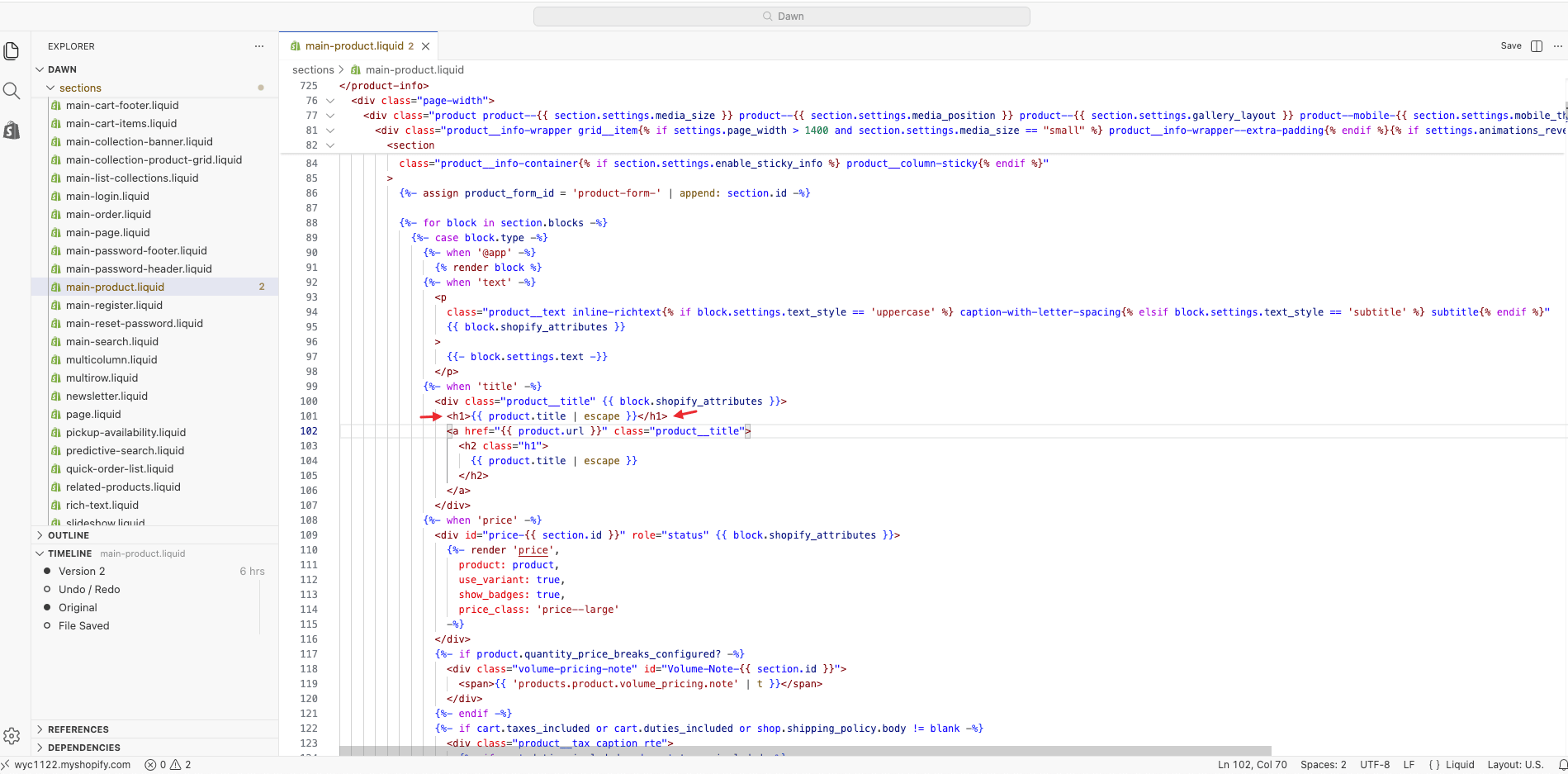
If your theme doesn't provide a setting to change the heading level, you'll need to edit the theme code.
For example, change:
<h1>{{ section.settings.heading }}</h1>to:
<h2>{{ section.settings.heading }}</h2>We recommend having this change made by someone familiar with Shopify theme development.
Method 3: Contact the theme developer
If you're using a third-party Shopify theme, contact the theme developer and ask them to identify which section is outputting multiple H1 headings. They can usually help you adjust the theme accordingly.
Will multiple H1 headings hurt SEO?
Not necessarily.
Google is able to understand pages that contain multiple H1 headings, and having more than one H1 does not automatically hurt your rankings.
However, following SEO best practices, we still recommend:
- Using only one primary H1 on each page (usually the product title).
- Organizing content with H2 and H3 headings.
- Avoiding unnecessary H1 headings generated by the theme.
A clear heading hierarchy makes your page easier for search engines to understand while also improving readability and accessibility for visitors.